Enterprise search is one of the key selling points of MOSS 2007 but at the same time this feature had its own problems.Before we go into the New Search Architecture of SharePoint Server 2010 lets just talk little bit of MOSS 2007 Search so that understanding of the SharePoint 2010 search becomes easy.
The MOSS 2007 Search architecture mainly consists of two main components: Query Server and the Index Server. The index server was the one which would take the content source(s) as its input and would generate content index. This content index would be stored in the index and also will be propogated to the query servers. This propogation is real-time which means that as soon as the index is created for an item, a copy of the index would be sent to the query server also.The role of the query server would be to get the request from the end user, hit a query to the local content index that it has and give back the user with the right set of results.In SQL Server there would one important database related to the search known as SSP_Search_DB which had all the information except index itself because the index would get stored in the file system and not the database.Also I would like to highlight that the
keyword and bestbets that you configure from the site collection administration section (in site actions -> site settings, within a site collection) is stored in SSP_database and not the content database.Talking about the problem that this architecture had was the single point of failure of the Index server. We just could not find a easy solution (or rather no solution ) to provide redundancy to the index server. No easy failure over mechanism for the index server.
Now lets jump into the Search in SharePoint Server 2010. So when we started designing the search for Sharepoint 2010 we realized that index was one role/engine that did most of the job of the search and also searching infomation in a large index is also difficult ( it would not give split second search results to the end user). So the answer for both the questions were break the index into smaller and distribute them.This would give us redundancy,if we want to, and also searching in smaller chunks of data is much faster than searhing in a large file.So before proceding further I would like to make some terms clear which may be new and also confusing :).
- In SharePoint Server 2010 we call the index server as the CRAWL server or crawler .Crawl Server primary role is same as index servers' role i.e., to index the data and create/prepare the index. So going forward I would be addressing the index role/engine/server as crawl(ing) server.
- The huge index file that was generated in index server in MOSS 2007 is broken down into smaller chunks and are known as INDEX PARTITION.
- Query Component and Crawl component are two more new terms.I will be explaining about these terms later in the post but from the term names you can guess that query component has to do something with quering the index partition and the crawl component is used to crawl (used to index).
In SharePoint Server 2010 when you create/configure the search service application, in SQL Server 3 databases get created. They are:
- Administration database.
- Crawl database.
- Property database.
Administration database is more like the SSP_Admin database. The crawl and property database are again something new in SharePoint Server 2010.
- Crawl database : It would have all the information except the index itself in the database like crawl log, crawl properties etc..
- Property database: Property database would hold the properties associated with the data that is being crawled. Such as the rating information,tags,notes etc.. Basically the metadata associated with the content.
So lets start from basic and simple example.
Once you have created the search service application, click on the search service and you will be see the below screen
Crawl component and the query component can be put on two different servers/machines.
The crawl component is the one that would crawl the content source(s). and create the index partition.Once the index partition is created,the crawl component will send the created index partition to the query component or the query server.When the request comes from the end user the query component would look into its index partition and send back the result.
Its important to note that the crawl component will NOT store index with it. As soon as the crawl component prepares the index partition it sends to the query component or the query server.Only the query server hold the index parition with them. At the same time we can multiple crawl components to crawl multiple content sources. Also every crawl component should be associated with one crawl database because the crawl component would write into that database the details about the crawl.We can also have multiple query components.
So before proceeding further, let me show what are the components that you can create in Search:
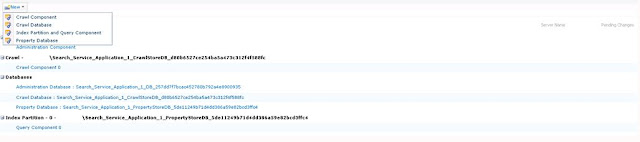
As you see that we can create multiple crawl component, multiple crawl database, multiple Index partition and query component and also multiple property database.
Now lets discuss when and how can be make use of multiple query components.Lets take an example: Say we have a large content source and we have a crawl component crawling the content source.At the same time we also have 2 query components.So here when the crawl component crwals the content, it creates the index partition and also it sends the index partition to both the query component. Its a real time propogation.When the Web Front End gets the user request, it sends the request to both the query component and the results are displayed. (for better understanding on how web front end interacts with query, refer my previous blog
here )
More on Search every soon....